Markdown Editor
Online Markdown editor: type on the left and watch the live preview on the right. Supports headings, lists, tables, code blocks, quotes and links, and can export the result as a styled standalone HTML file or copy it in one click. Everything renders locally in your browser.
How to use
- Type Markdown in the left pane and watch the preview update as you type. Click "Example" to load a full sample document.
- Supported syntax: # headings, **bold**, *italic*, `inline code`, ``` code blocks, unordered/ordered lists, > blockquotes, --- horizontal rules, tables, plus [links](https://…) and images.
- Click "Export HTML" to download a self-contained .html file with embedded styles, ready to publish or archive.
- "Copy HTML" copies the same complete document to the clipboard so you can paste it into an editor or CMS.
- For safety, any raw HTML tags in your input are escaped and shown as plain text: they are never executed in the preview, so pasting untrusted content is safe.
FAQ
Which Markdown syntax is supported?
Why doesn't the HTML I typed take effect in the preview?
Do the exported/copied HTML files include styles?
Is my content uploaded to a server?
Screenshots
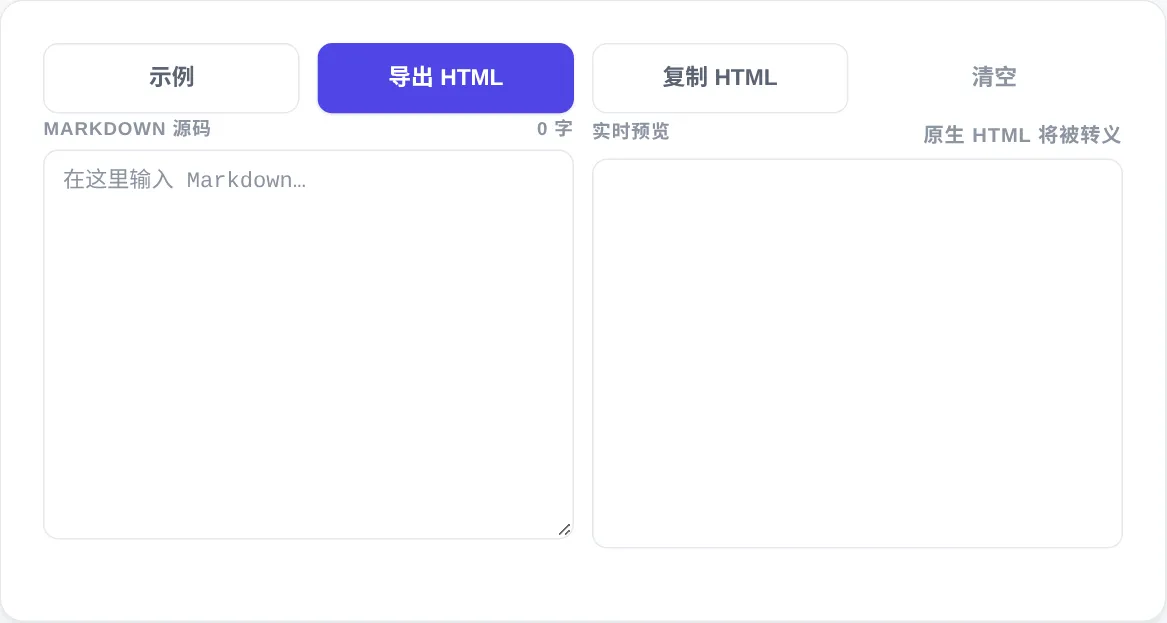
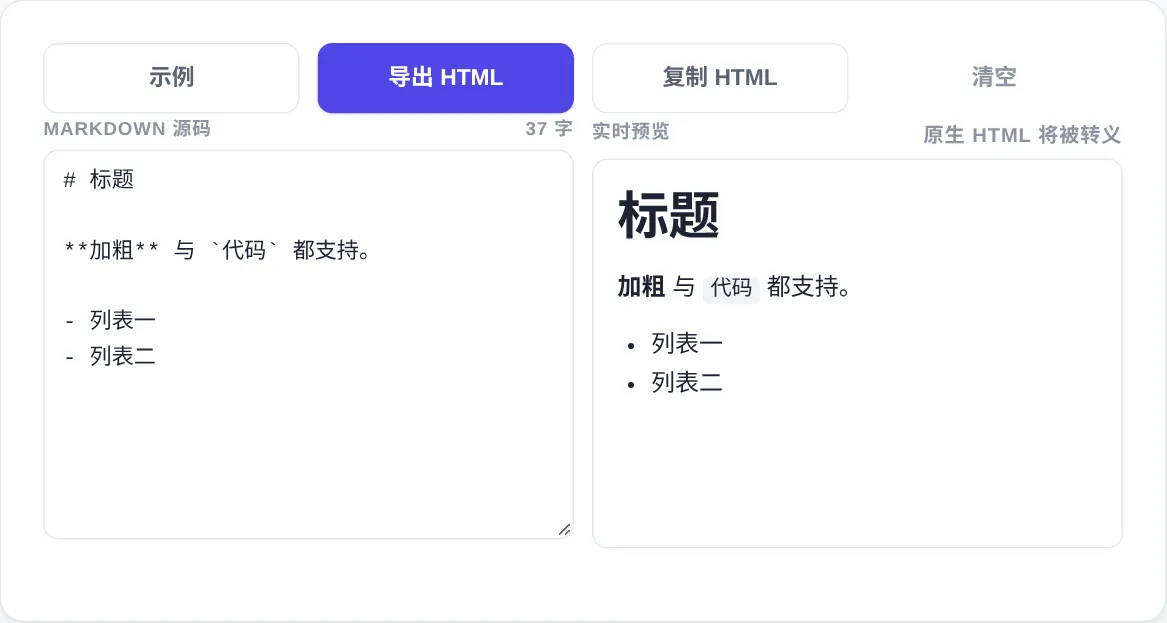
How to use
- Type on the left
Write Markdown in the source pane and the right-side preview re-renders as you type, with a running character count. Click Example to load a complete demo document.
- Use the supported syntax
Headings, bold, italic, inline code, fenced code blocks, ordered and unordered lists are all supported. Blockquotes, horizontal rules, tables, links and images are also part of this editor subset.
- Export a standalone file
Click Export HTML to download a self-contained .html file with all styles embedded. Headings, code, quotes and tables keep their look, ready to publish or archive as-is.
- Copy instead of export
Prefer pasting? Click Copy HTML to put the same complete styled document on your clipboard for an editor or CMS. It matches what the exported file would contain.
- Paste untrusted text safely
Raw HTML tags in your input are escaped and shown as plain text, never executed by the preview. Markdown from unknown sources cannot inject scripts into the page.
About this tool
This is a two-pane online Markdown editor: type source on the left and watch it render into styled output on the right. No software to install. It covers the everyday syntax: headings, emphasis, lists, quotes, tables, code blocks, links and images. It can also export a standalone HTML file with embedded styles, or copy that HTML to the clipboard. Rendering happens entirely in your browser, so drafts never touch a server.
It fits technical documentation and API notes, a final preview before publishing to a blog or CMS, and quick class notes or meeting minutes. It also prepares ready-made HTML for platforms that do not accept Markdown. Because raw HTML is escaped rather than executed, it is also a safe place to paste drafts from unknown sources. Writers, students, developers and content operators can all use it as a lightweight editor in the browser.
How it works
Markdown was published in 2004 by John Gruber with Aaron Swartz, distilling the typesetting habits of plain-text email into a format readable even unrendered. Hashes become headings, asterisks become emphasis, indentation becomes code. The original spec was thin and left many edge cases undefined, so renderers diverged until CommonMark began pinning them down in 2014. Tables are not in the original spec at all. The pipe-and-hyphen syntax here comes from the GitHub Flavored Markdown extension.
Markdown also permits raw HTML. That is convenient in private notes and a classic attack surface wherever other people's input is displayed. A single script tag or event attribute can execute arbitrary code in a visitor's browser; the pattern is called cross-site scripting, or XSS. Escaping tags into visible text before rendering is the standard defense, and that is how this preview treats raw HTML. Exporting is similarly pragmatic: CSS is embedded into one HTML file with no external stylesheet dependency. Layout survives offline viewing and a move to another machine.
When to use it
- Writing API and technical docs
Technical documentation leans on code blocks and parameter tables. Fenced blocks keep indentation and monospacing, and tables line up column by column with pipes. Exporting the finished HTML hands colleagues without a Markdown environment a document whose styling will not drift.
- Previewing before publishing
Blog platforms and CMSs support Markdown unevenly. Render tables, code blocks and lists locally until they look right, then export or copy the HTML and paste that. A syntax your platform silently swallows gets found before publishing, not after.
- Keeping meeting notes and excerpts
Structure notes with headings, capture points as lists, and quote source passages in blockquotes while the render updates live. Export the same source to HTML afterwards, and the archive keeps its layout for years, independent of which software survives.
Tips & tricks
- Click Example first and compare the source pane with the preview. It is the fastest way to learn which syntax this editor supports.
- The preview notes that raw HTML is escaped: tags appear as visible text instead of running, so untrusted pastes cannot inject scripts.
- The exported file ships with full embedded styles. It keeps its formatting when emailed, shared or dropped onto a static site, with no extra CSS needed.
Things to watch
- Tables need all three rows
A table requires a header row, a separator row and then data rows. The hyphens declare the columns, and colon placement sets left, center or right alignment. If pipe text refuses to become a table, the separator row or a blank line is missing.
- Accidental indentation turns into code
Four leading spaces or one tab marks a code block. A paragraph that suddenly turns monospaced usually hides stray indentation. A blank line between list items creates a loose list with wider spacing. When layout quietly shifts, inspect whitespace first.
- Export embeds styles, not images
The exported HTML embeds CSS only. Images stay referenced by their original address and break once a link dies or a local path moves. For long-term archiving, confirm images are publicly reachable or place them beside the file on matching relative paths.